

How to Connect/Mapped a Client’s Facebook Page and Ad Account to an Agency
When a digital marketing agency onboards a new client, it needs access to the client’s Facebook Page and Ad Account before it can manage campaigns.
Meta Business Access
The client should not share their personal Facebook password with the agency. Instead, the agency can request access to the required business assets through its own Meta Business Portfolio.
This blog provides a detailed, step-by-step guide to connecting a client’s Facebook Page and Ad Account to an agency’s Meta Business account.
STEP 1: Open the Agency’s Facebook Account
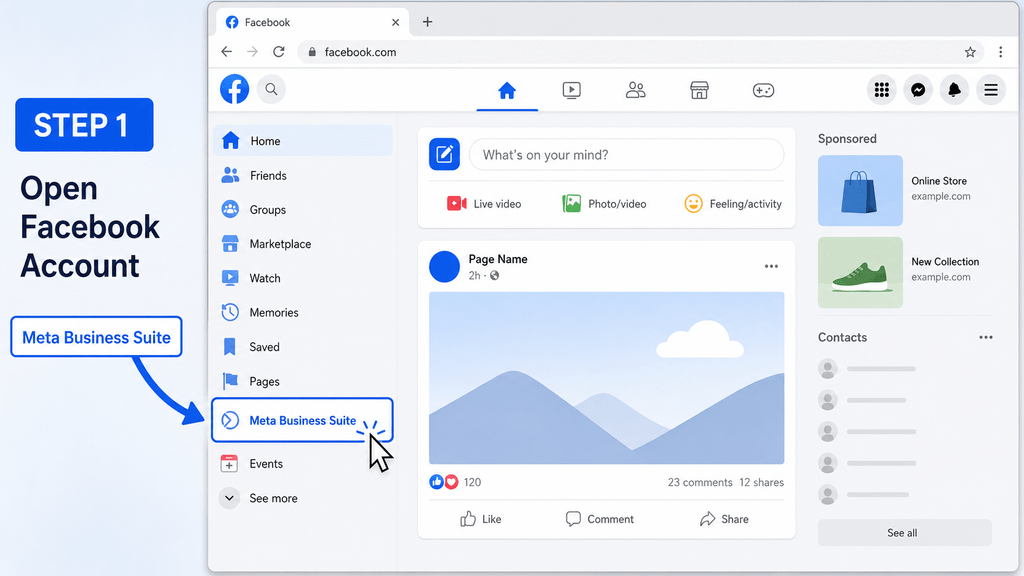
Open Facebook.com and sign in using the Facebook account connected to the agency’s Meta Business Portfolio.
After signing in, select Meta Business Suite from the left-side menu.
Business Operations
Make sure you are opening the agency’s official business account and not a personal or unrelated Business Portfolio.
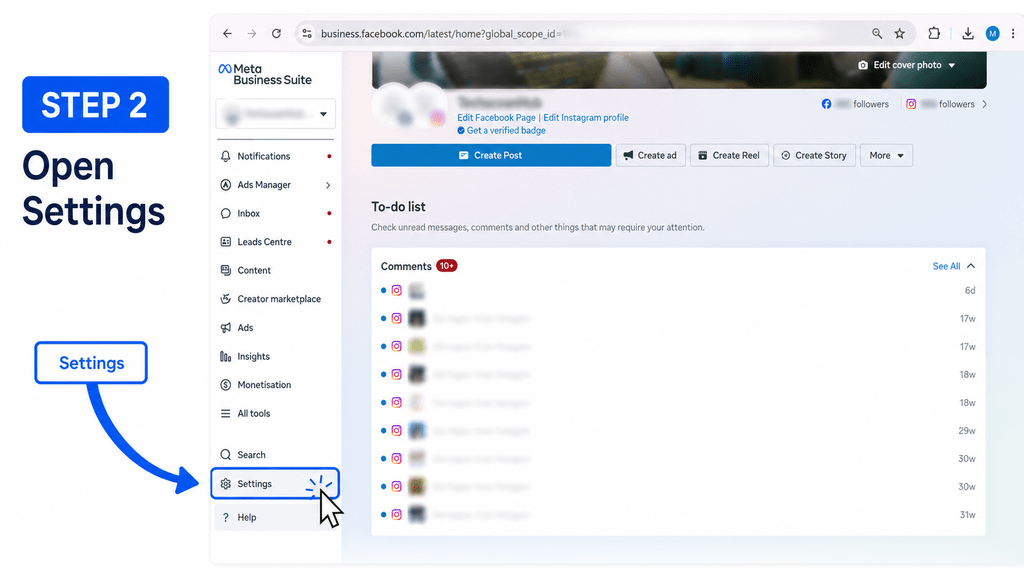
STEP 2: Select the Correct Business Portfolio
Inside Meta Business Suite, click the Settings icon in the bottom-left corner.
Select the agency’s Business Portfolio in which you want to connect the client’s Page and Ad Account.
Management
If your agency manages multiple Business Portfolios, check the portfolio name carefully before continuing.
STEP 3: Request Access to the Client’s Facebook Page
Follow these steps:
- Open Business Settings.
- Go to Business Info → Accounts → Pages.
- Click Add.
- Select the option to add or request access to an existing Page.
- Enter the client’s Facebook Page URL or Page name.
- Select the permissions required by the agency.
- Submit the request.
Social Networks
For example, enter the URL of the client’s business Page, such as the Page used for their brand, dealership, service, or campaign.
Once submitted, the Page owner may need to approve the agency’s request from their own Meta Business settings.
STEP 4: Connect the Client’s Business as a Partner
To connect the client’s business through partner access:
- Open Business Info.
- Go to Partners.
- Click Add.
- Enter the client or partner’s Business ID.
- Click Next.
- Select the Page and permissions required for the agency.
- Send or complete the access request.
Business Access
The Business ID can usually be found in Meta Business information or inside the Business Portfolio URL.
Example:
Business ID: 134……207
Always verify the complete Business ID with the client before submitting the request.
STEP 5: Find the Client’s Ad Account ID
Before requesting Ad Account access, ask the client to share the correct Ad Account ID.
The Ad Account ID is a unique number assigned to the client’s advertising account.
Example:
Ad Account ID: 1024……71
Advertising & Marketing
The client can find the Ad Account ID in Ads Manager, Ad Account Settings, or Business Settings → Accounts → Ad Accounts.
Do not use the Business ID, Page ID, or personal account ID in place of the Ad Account ID.
STEP 6: Request Access to the Client’s Ad Account
Follow these steps:
- Open Business Settings.
- Go to Business Info → Accounts → Ad Accounts.
- Click Add.
- Select Request access to an Ad Account in another Business Portfolio.
- Enter the client’s Ad Account ID.
- Select the required access level.
- Submit the request.
You may see access options such as:
→ View performance
→ Manage campaigns
→ Full control
For campaign creation and management, select Manage Campaigns or the relevant partial-access permissions.
Give or request Full Control only when it is genuinely required.
STEP 7: Ask the Client to Approve the Request
After the agency sends the request, the client must open their Meta Business settings and approve it.
Access Approval
The client should verify:
→ Agency name
→ Agency Business ID
→ Requested Facebook Page
→ Requested Ad Account
→ Permissions requested
The client should approve only the assets and permissions required for the agreed marketing work.
STEP 8: Verify the Connected Assets
Once the client approves the requests, return to the agency’s Business Portfolio.
Check the following sections:
→ Accounts → Pages for the client’s Facebook Page
→ Accounts → Ad Accounts for the client’s Ad Account
→ Partners for the connected business
→ People to assign the assets to the correct agency team member
The client’s Page and Ad Account should now appear under the agency’s Business Portfolio.
You’re Ready!
The client’s Facebook Page and Ad Account are now connected to the agency’s Meta Business Portfolio.
The agency can begin managing the approved Page activities and advertising campaigns without using the client’s personal Facebook login credentials.
Connecting business assets through Meta Business Settings creates a safer and more professional working process for both the client and the agency.
By requesting access through the agency’s Business Portfolio, the client keeps ownership of the Facebook Page and Ad Account while the agency receives only the permissions required to manage the work.
Always verify the Page URL, Business ID, Ad Account ID, and requested permissions before submitting or approving an access request.